
Guide for Setting Up Calendar on iPhone via Apple Configuration Profile
Simple steps to setup calendar on iphone.
- Open Safari (or any browser) on your iPhone.
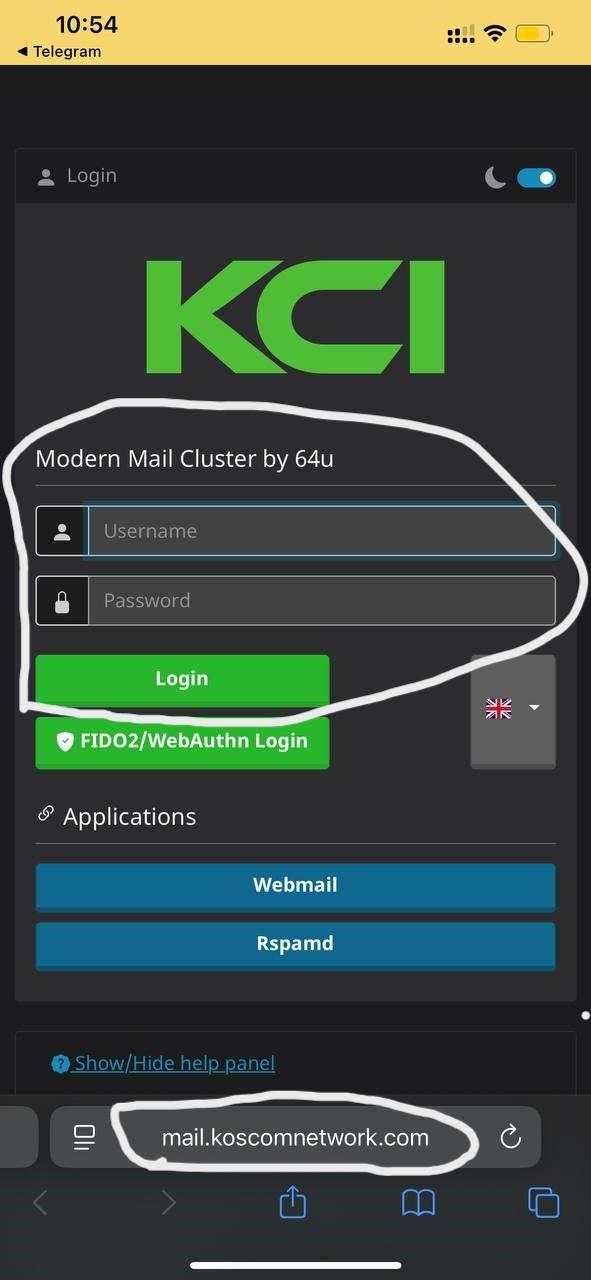
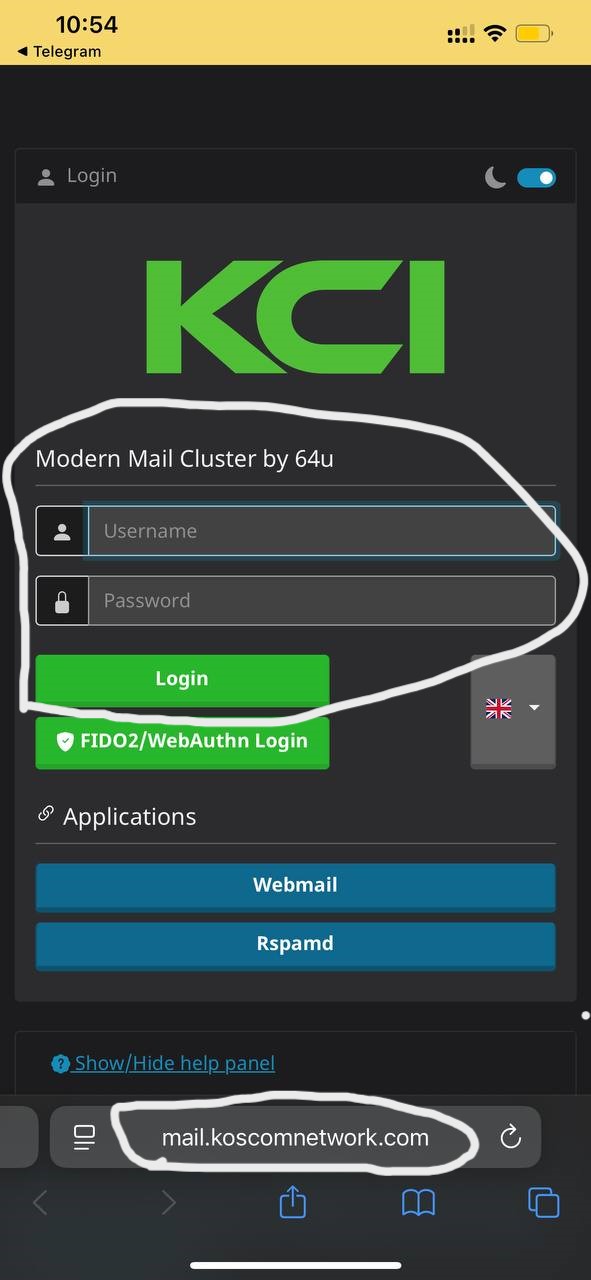
- Navigate to https://mail.koscomnetwork.com/.
-
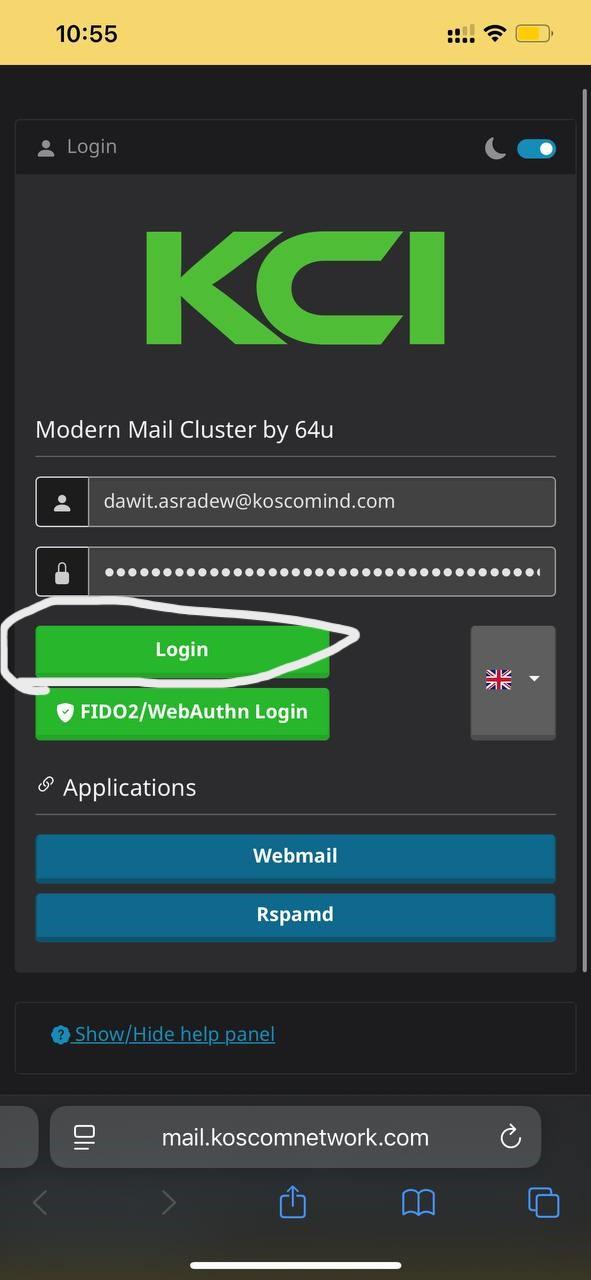
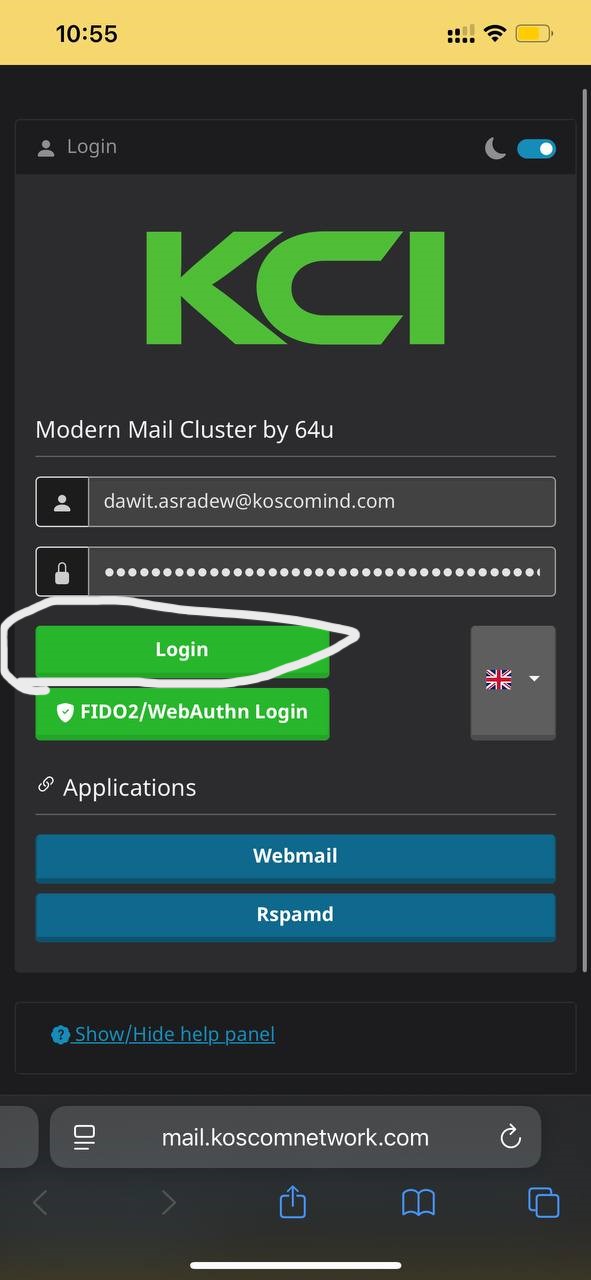
Log in with your email credentials:
Email: test.test@test.com
Password: pass-testingsoer
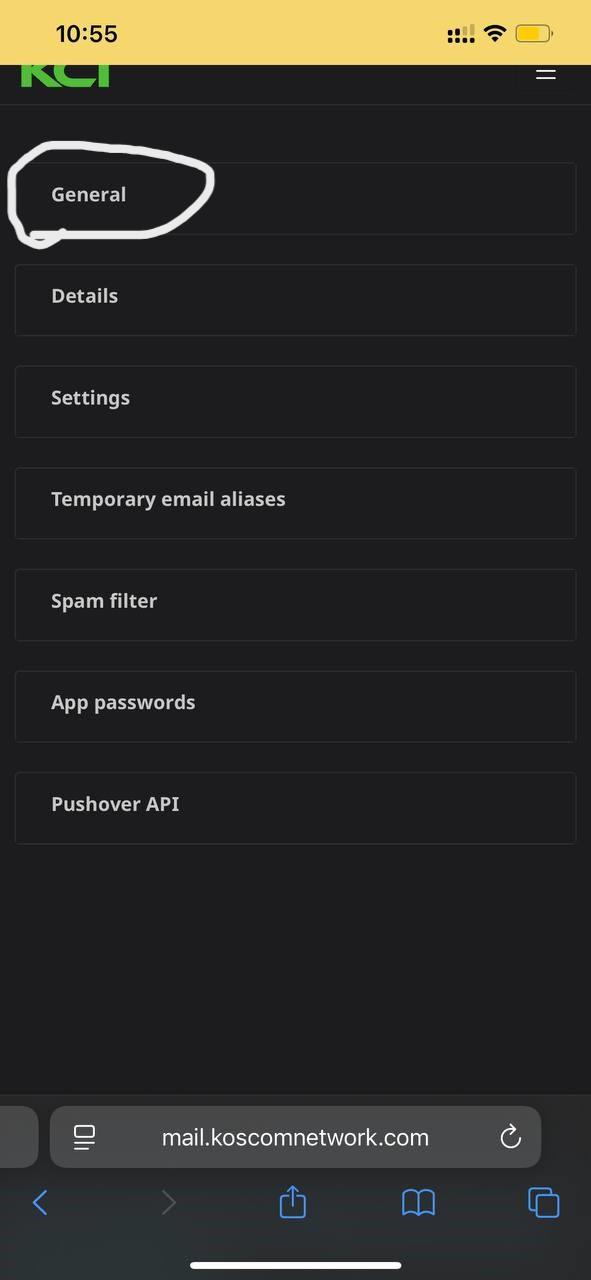
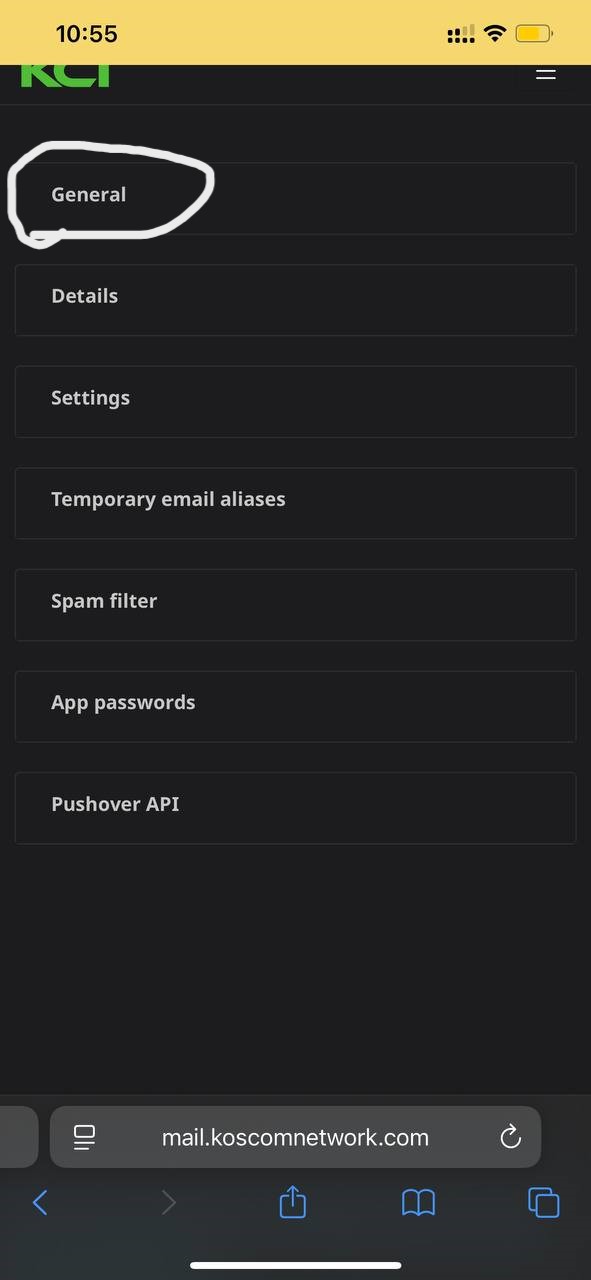
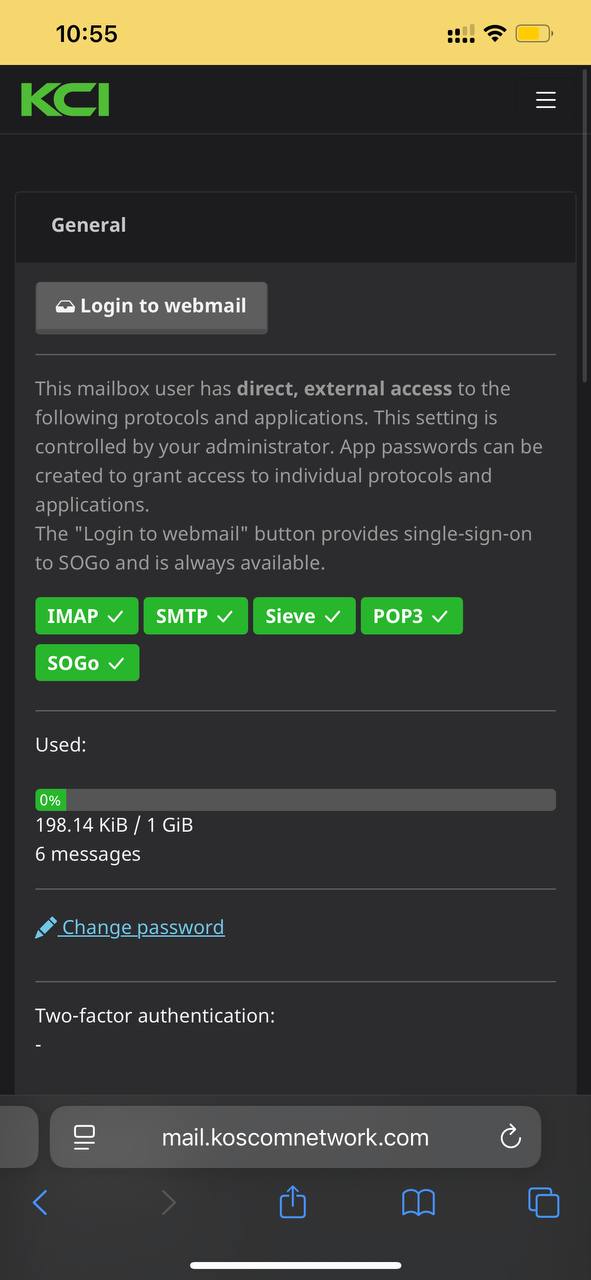
- After logging in, tap on the General option as shown in the image.
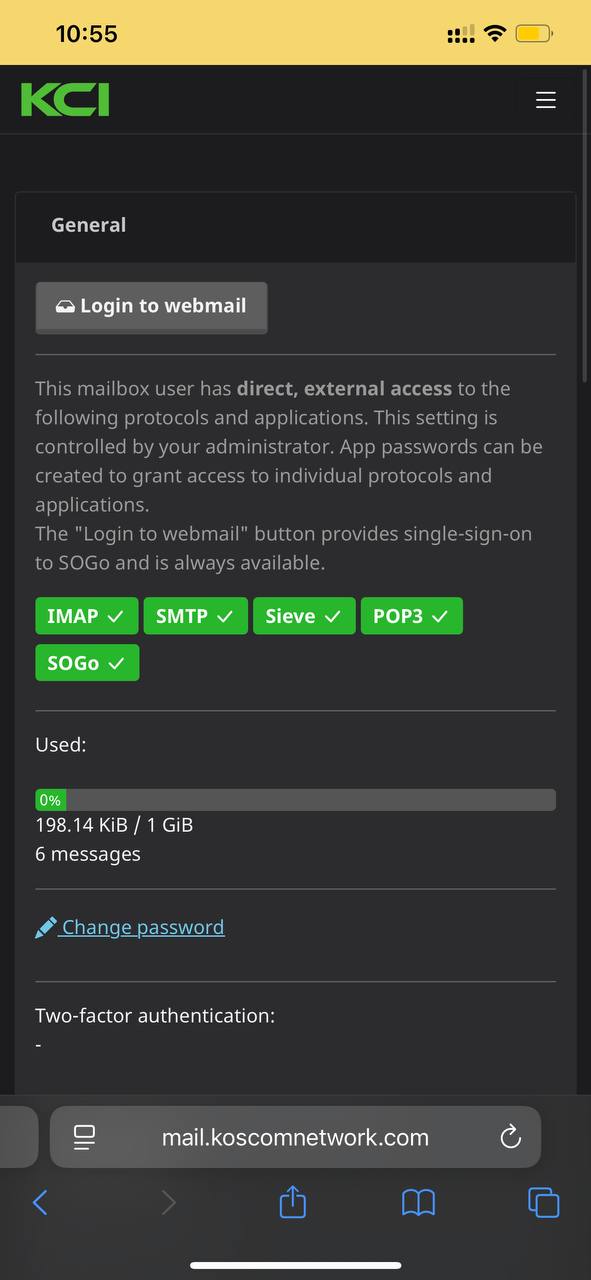
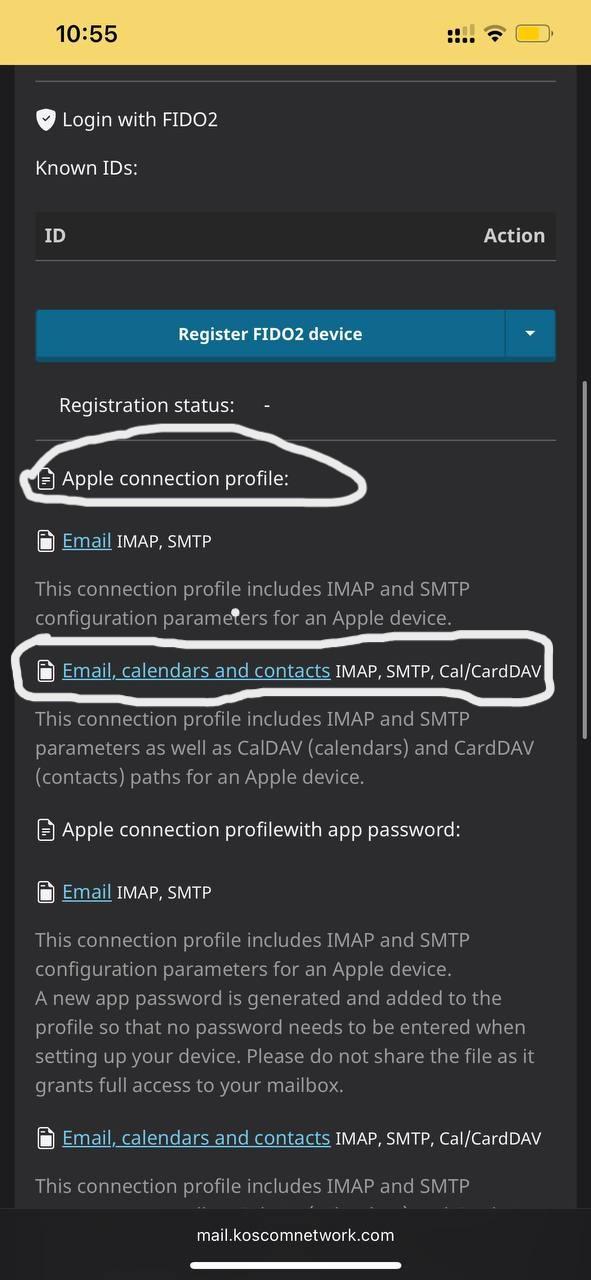
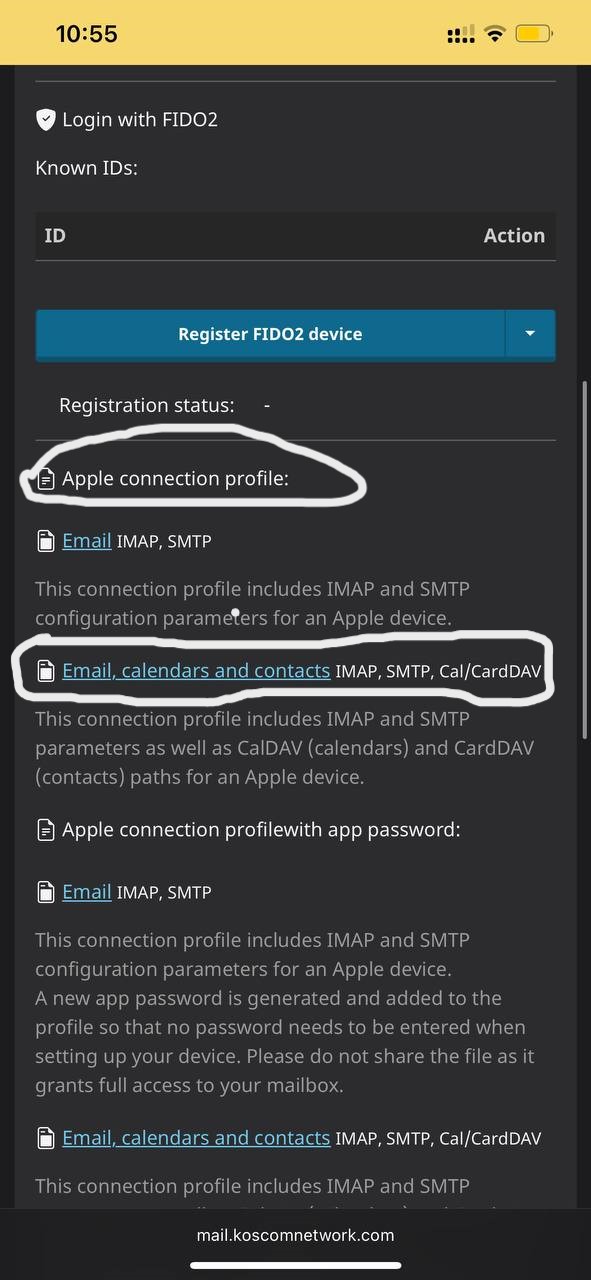
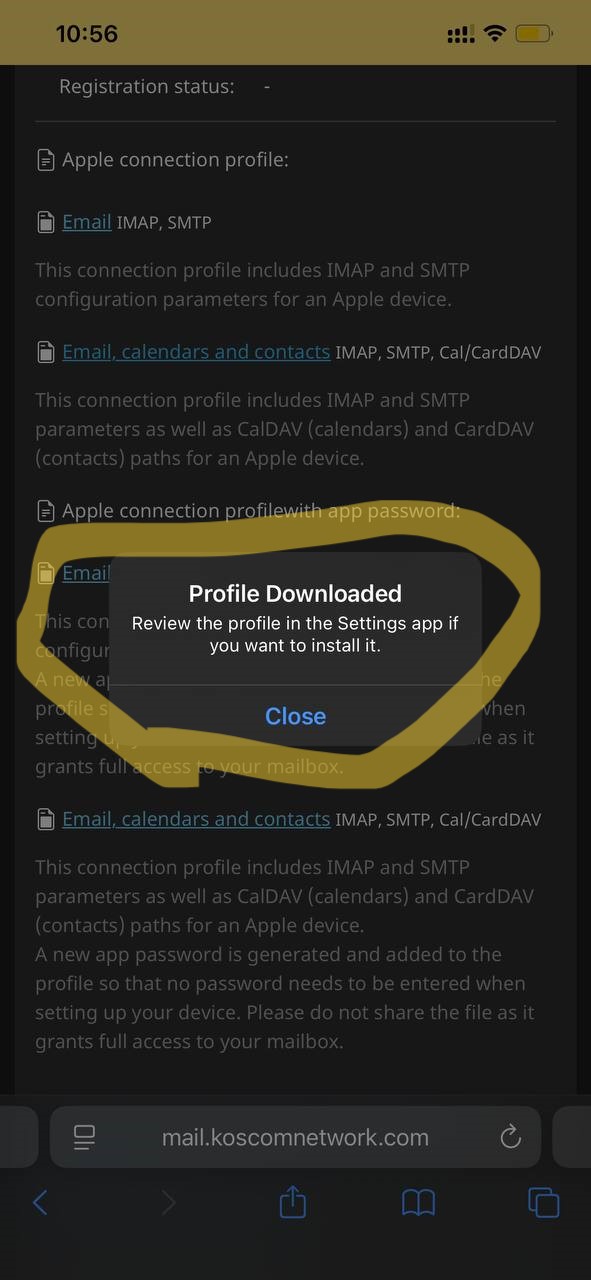
- Scroll down to the Apple Connection Profile section And Tap on "Email, calendars and contacts IMAP, SMTP, Cal/CardDAV" to download the configuration profile as shown in the image below
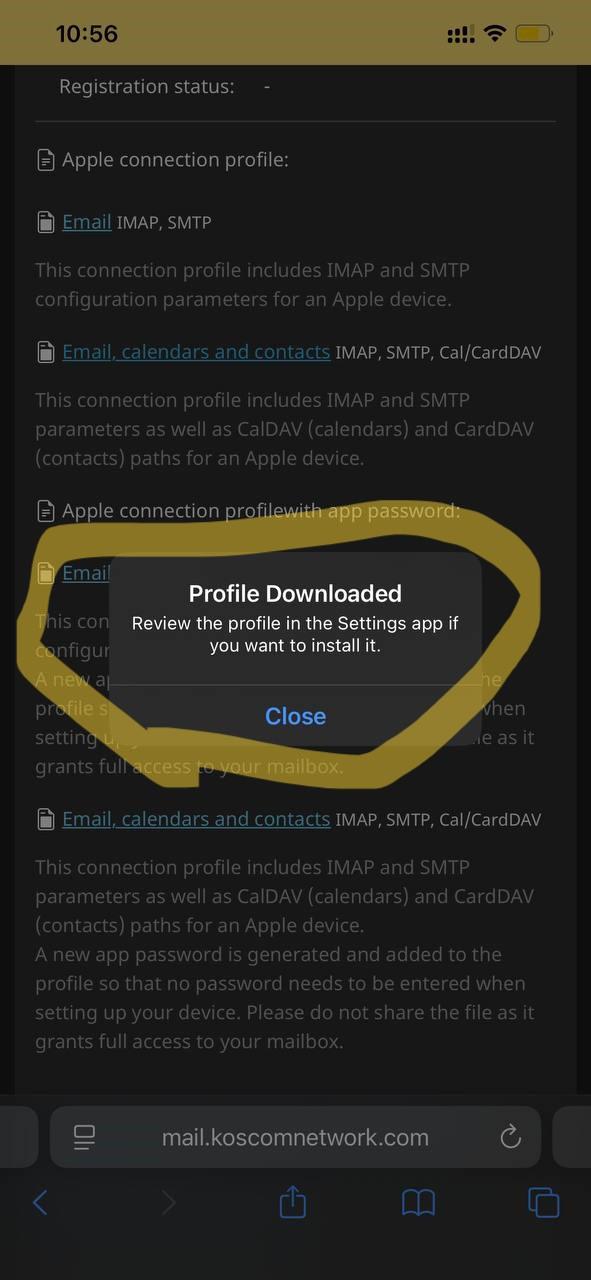
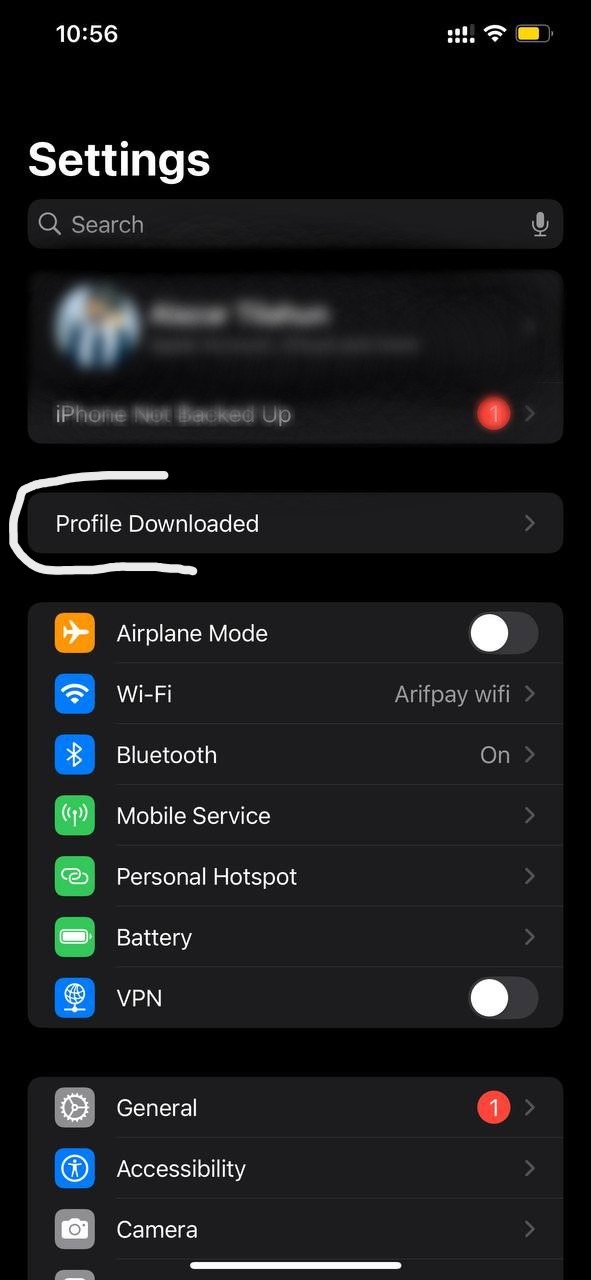
- After the download completes, open your iPhone's Settings app.
-
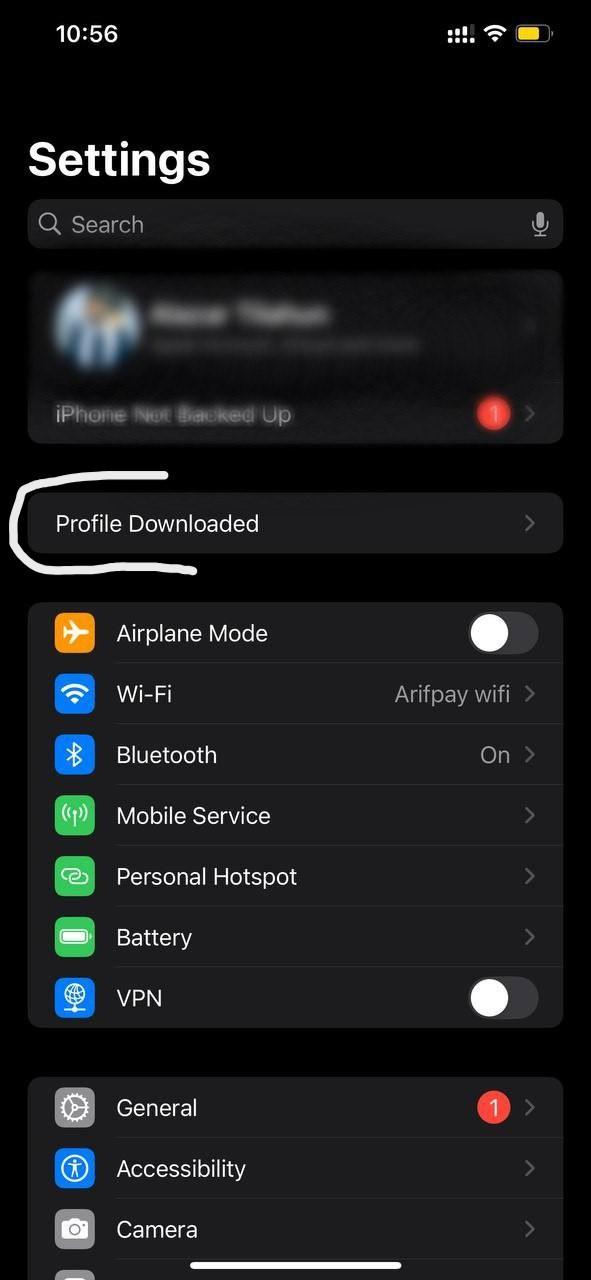
At the top of the Settings menu, tap on Profile Downloaded.
-
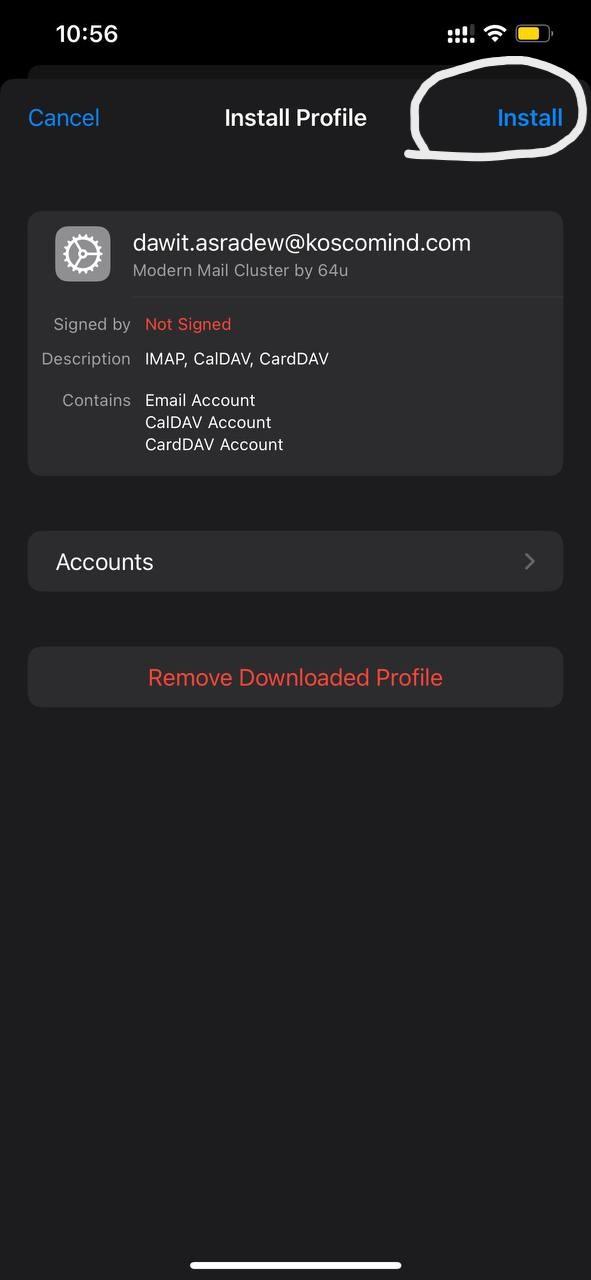
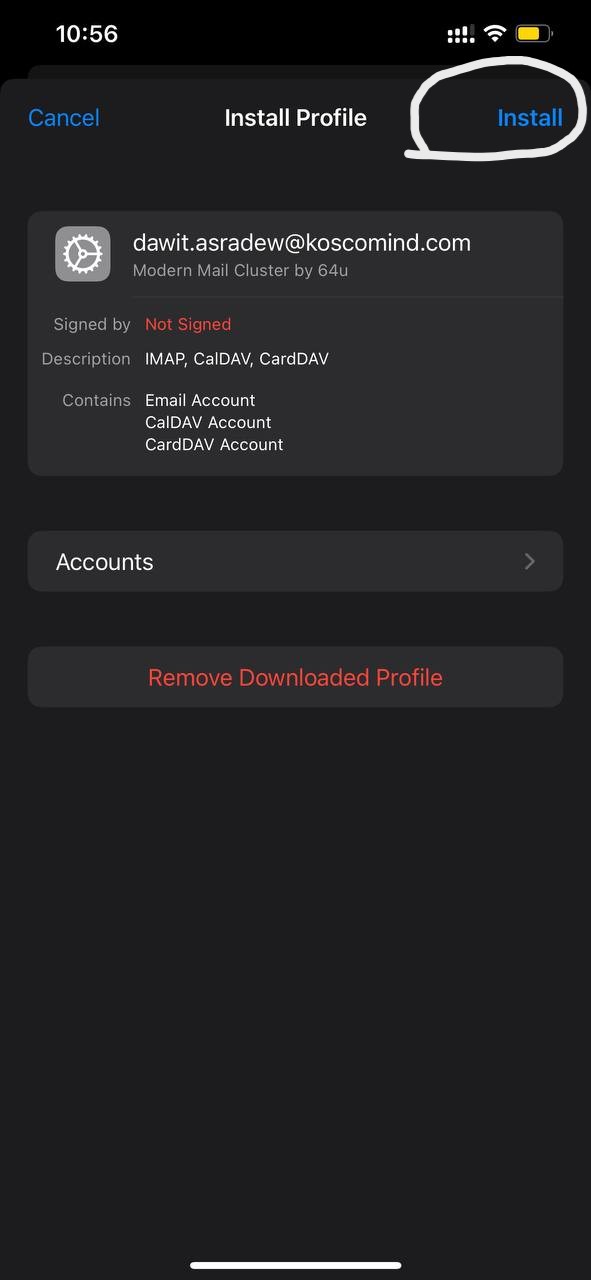
On the Install Profile screen, tap Install in the top-right corner.
-
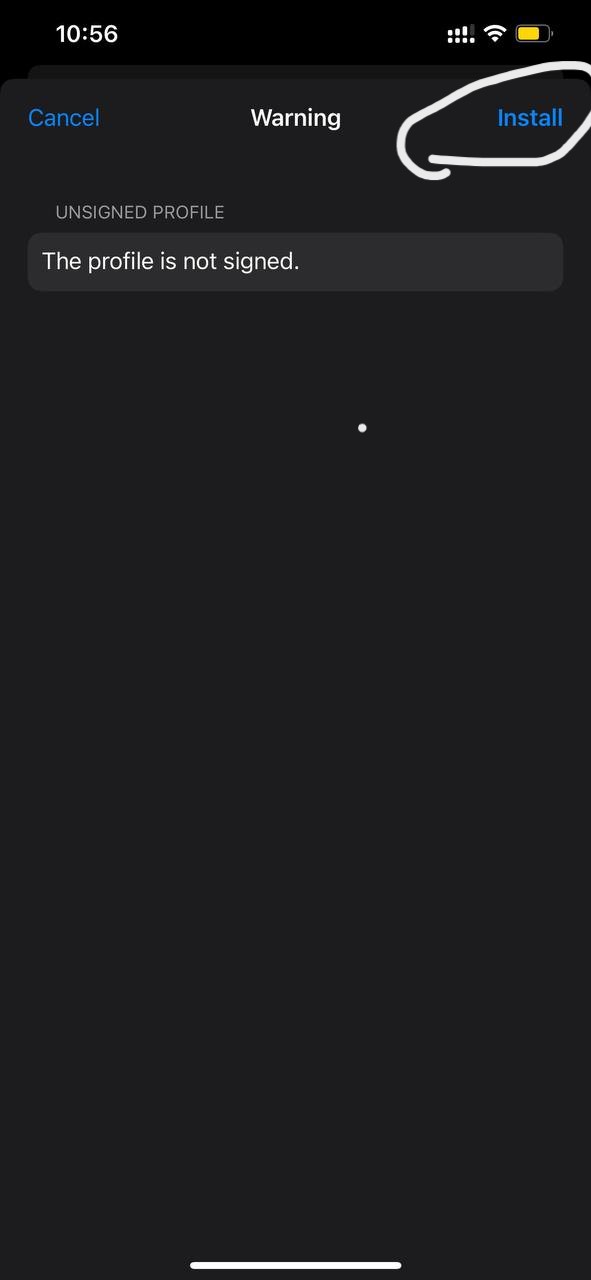
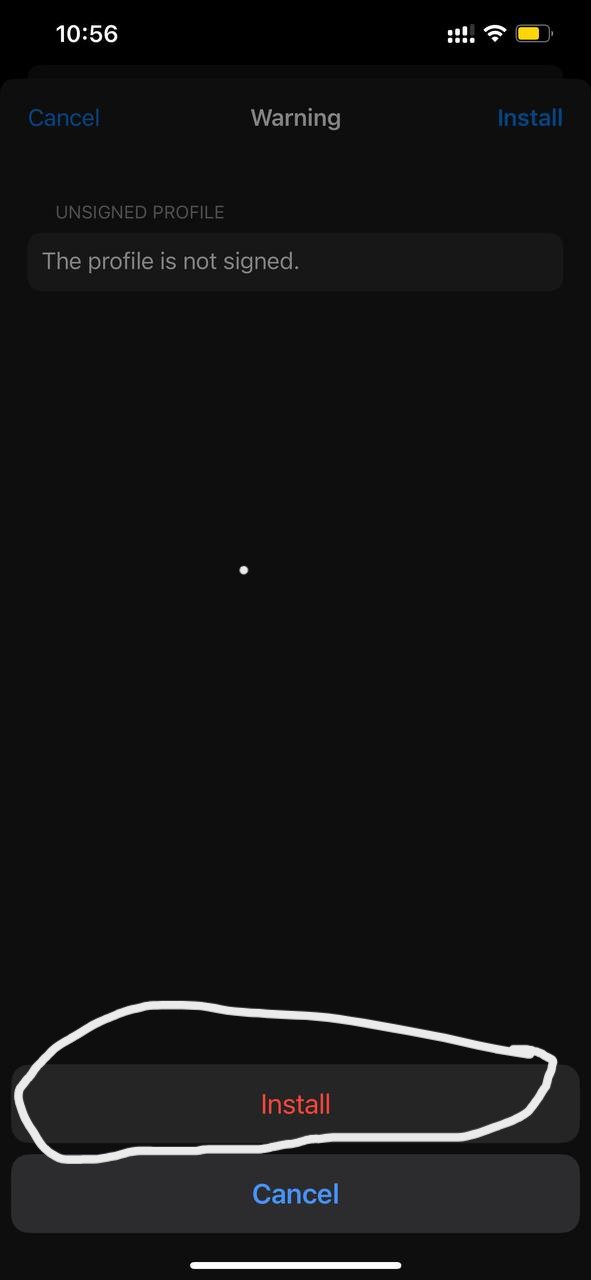
A warning message will appear; proceed by tapping Install again.
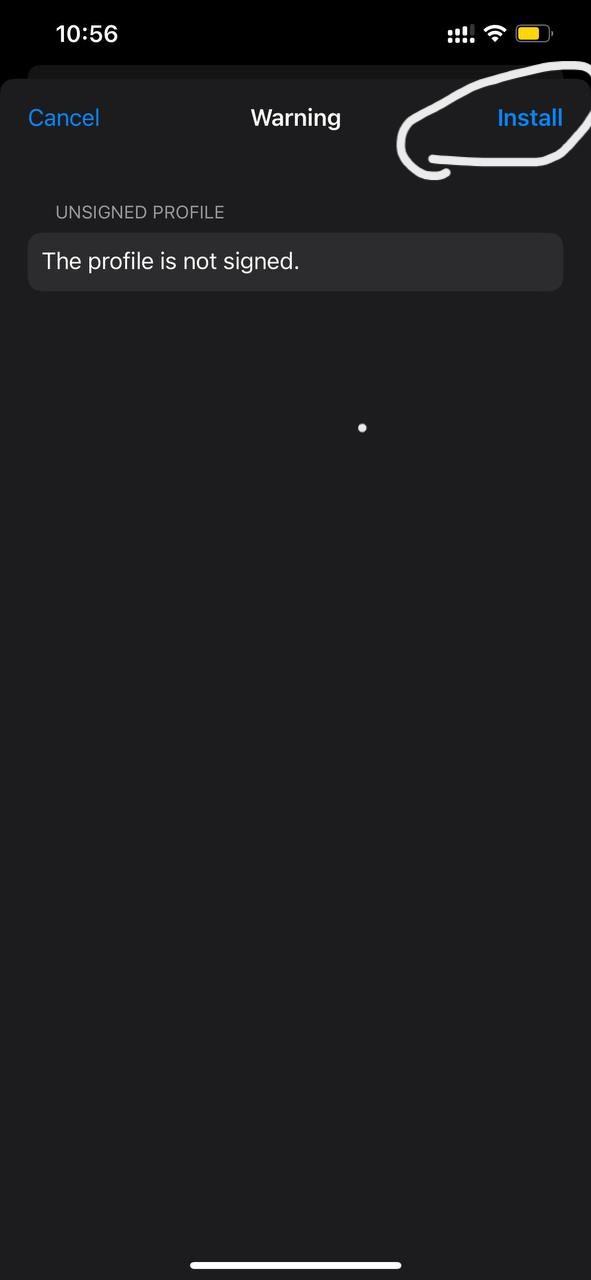
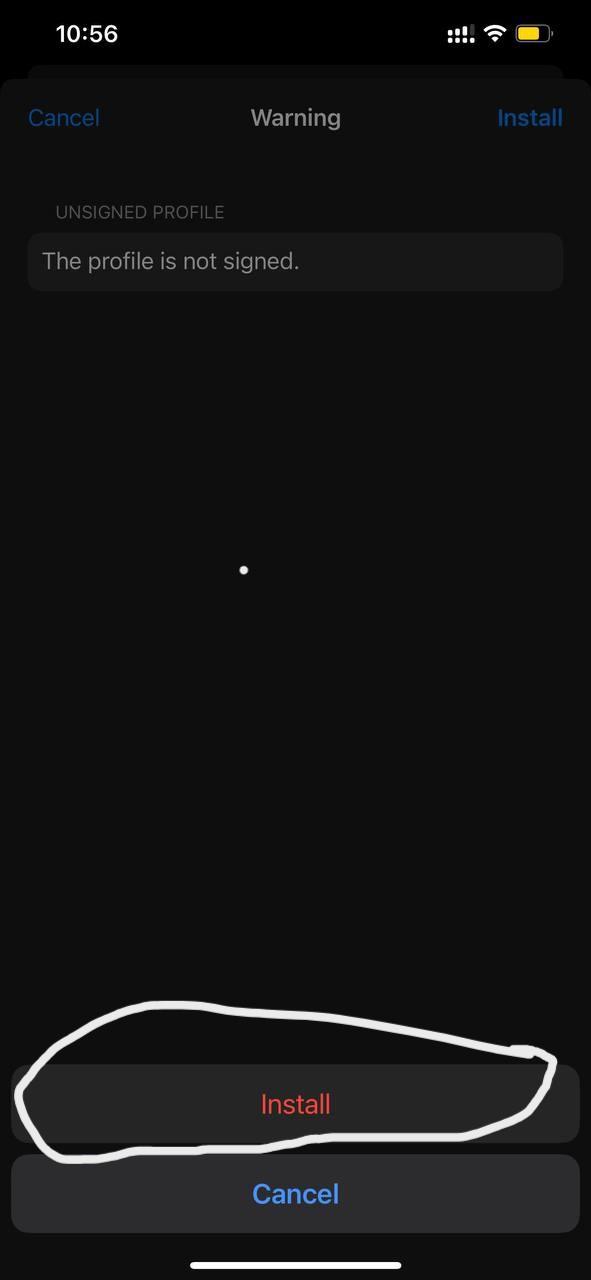
-
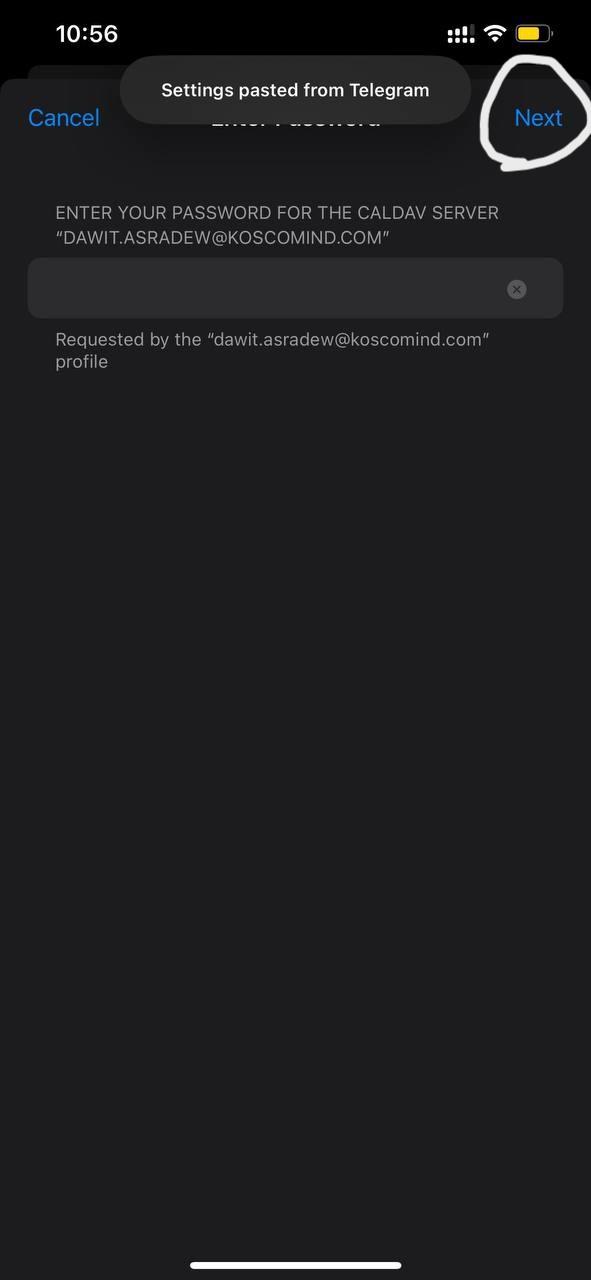
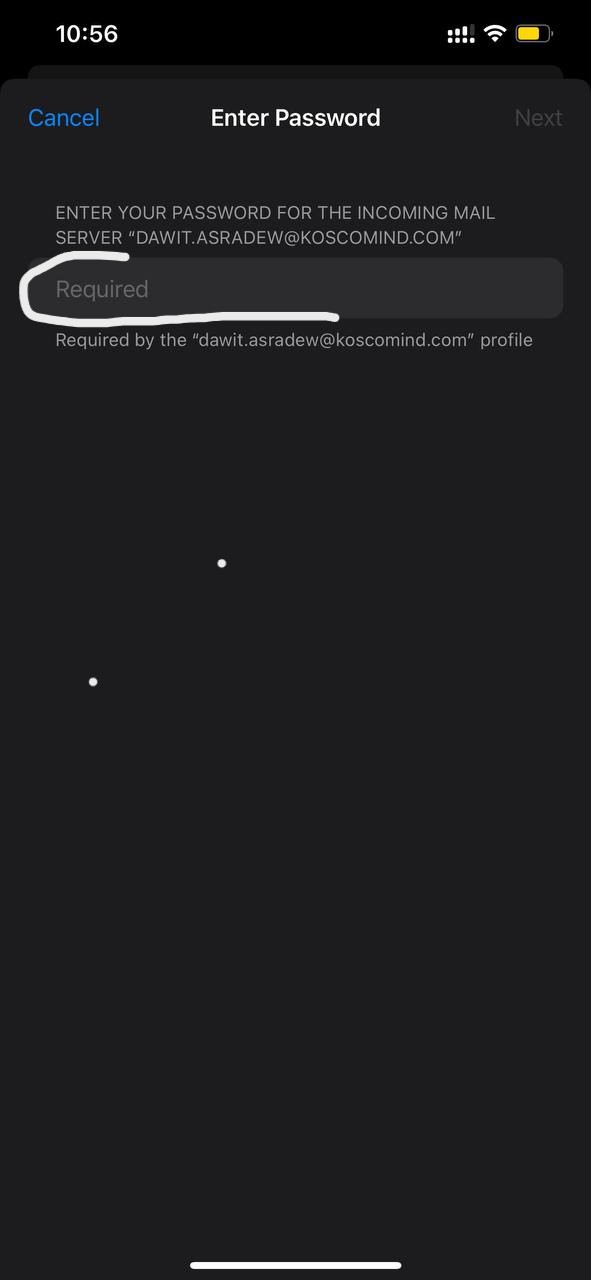
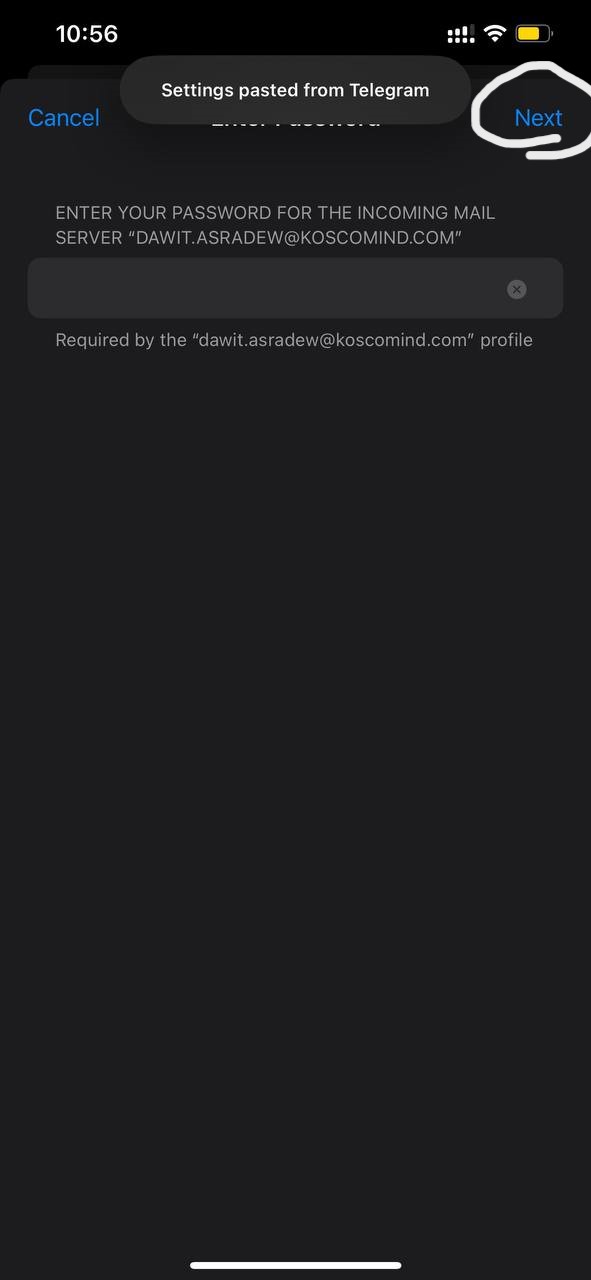
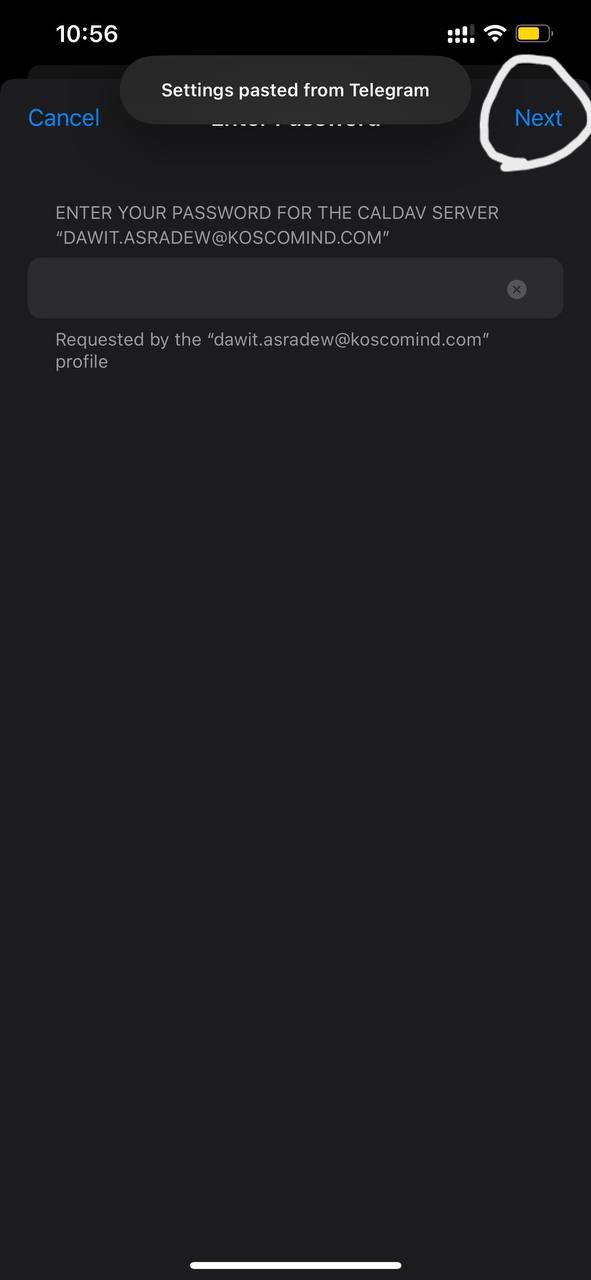
When prompted, enter your email password:
-
Incoming Mail Password: Enter your email password.
-
CalDAV Server Password: Enter the same email password.
-
Tap Next after entering the passwords.
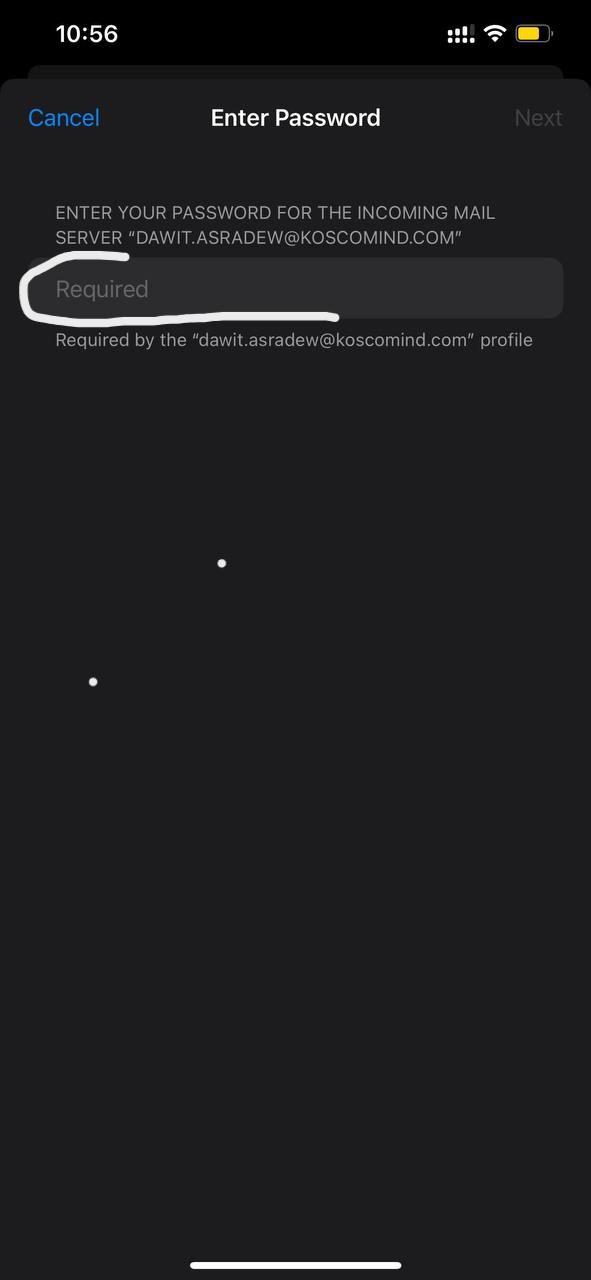
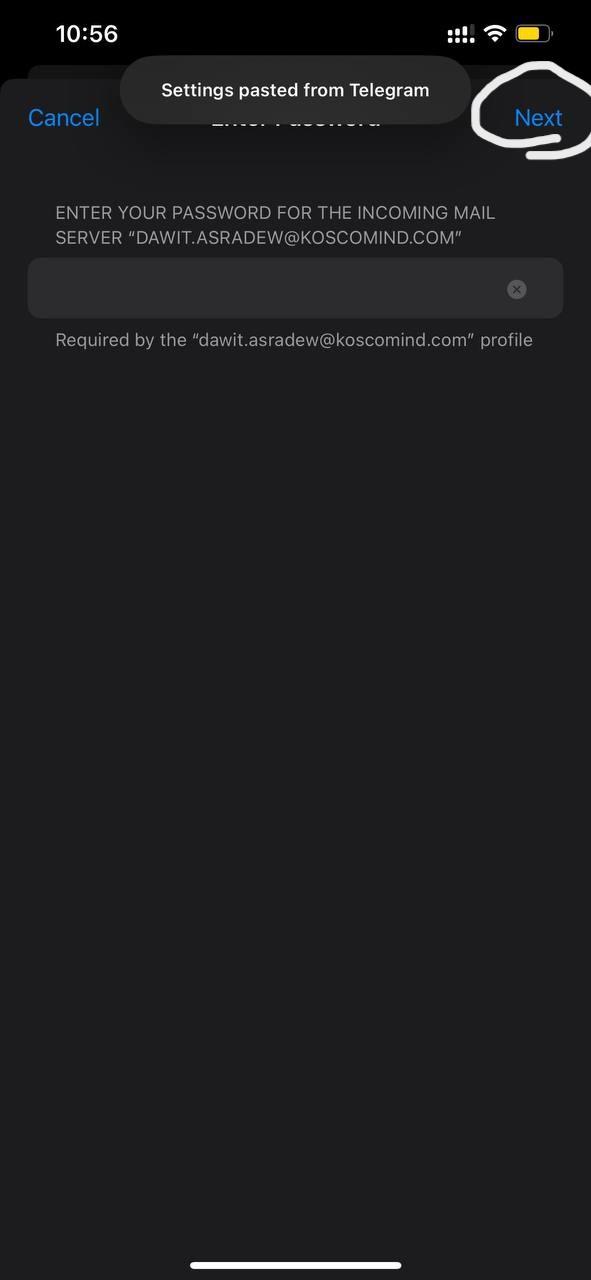
-
-
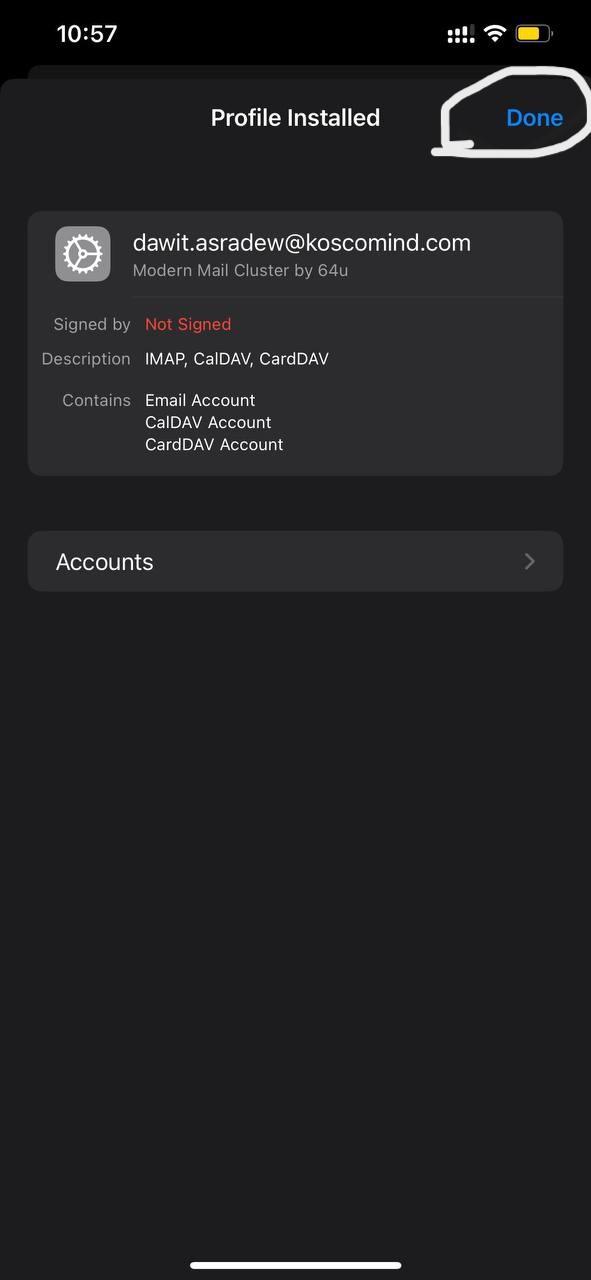
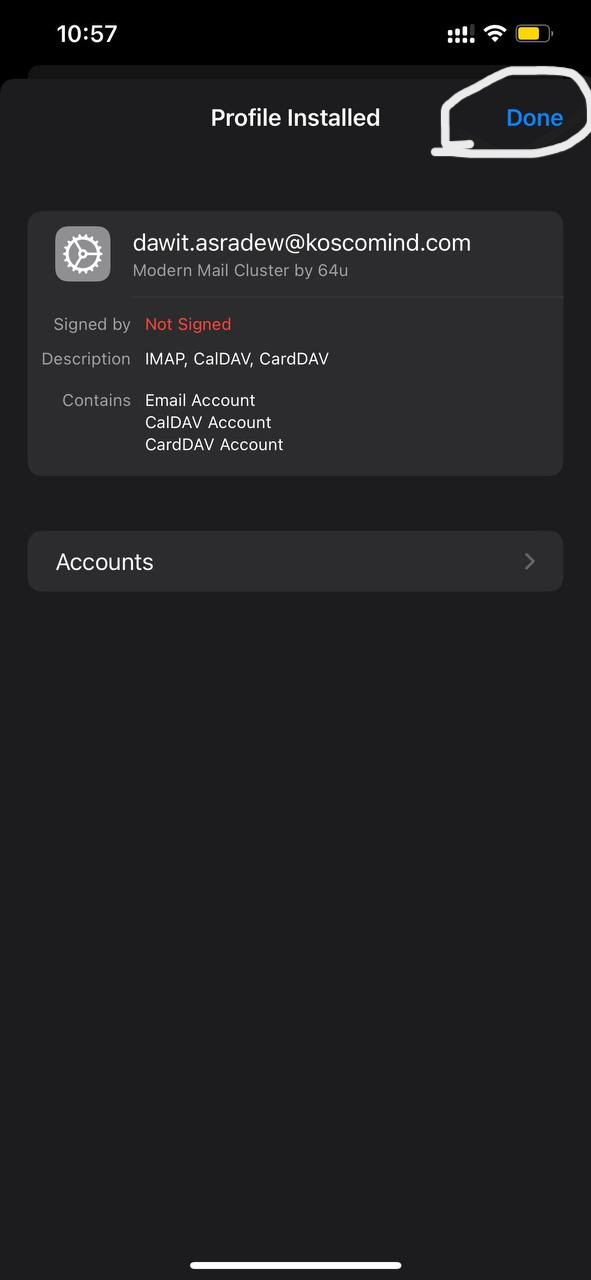
Once the profile is installed, you'll see the Profile Installed screen; tap Done.
-
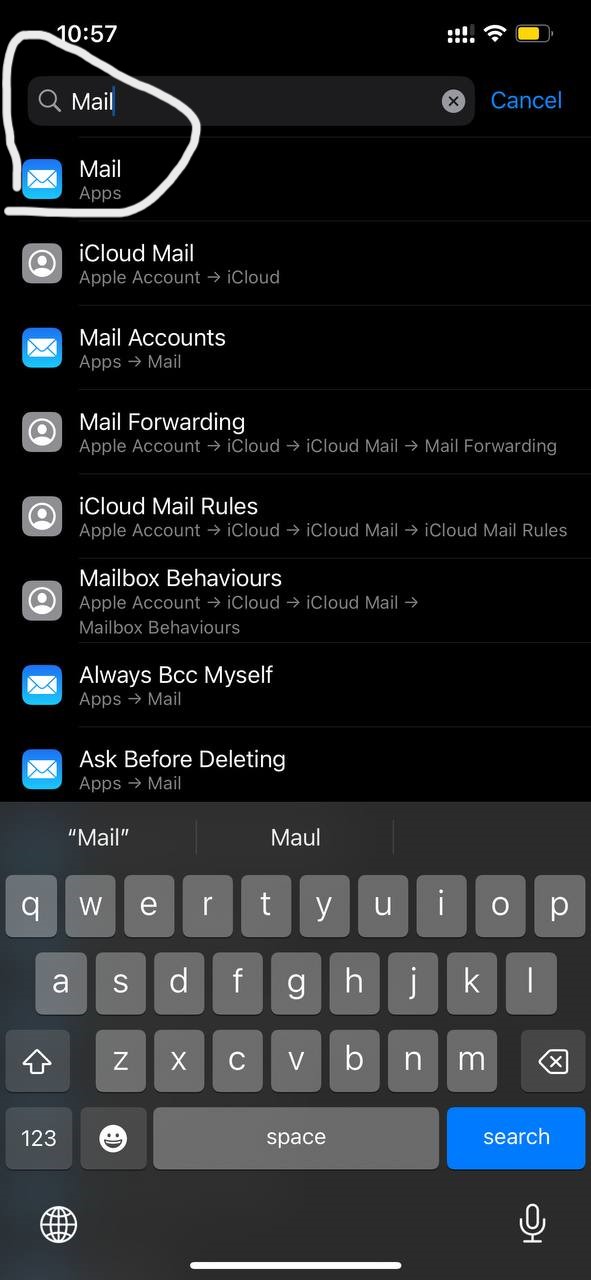
Return to the Settings app.
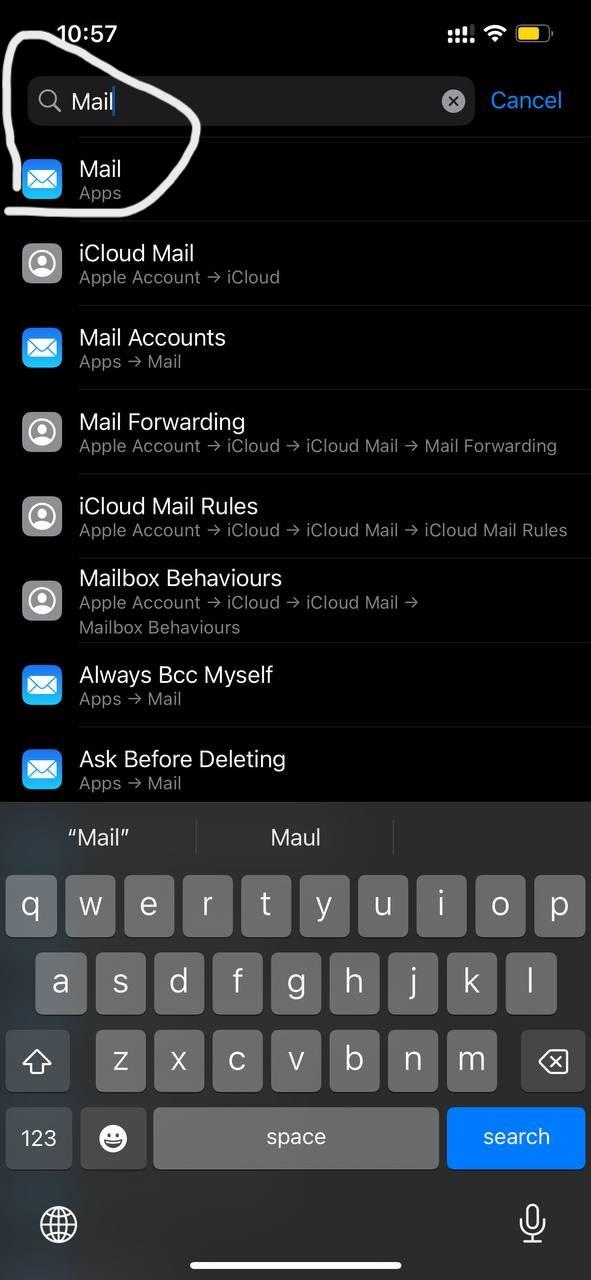
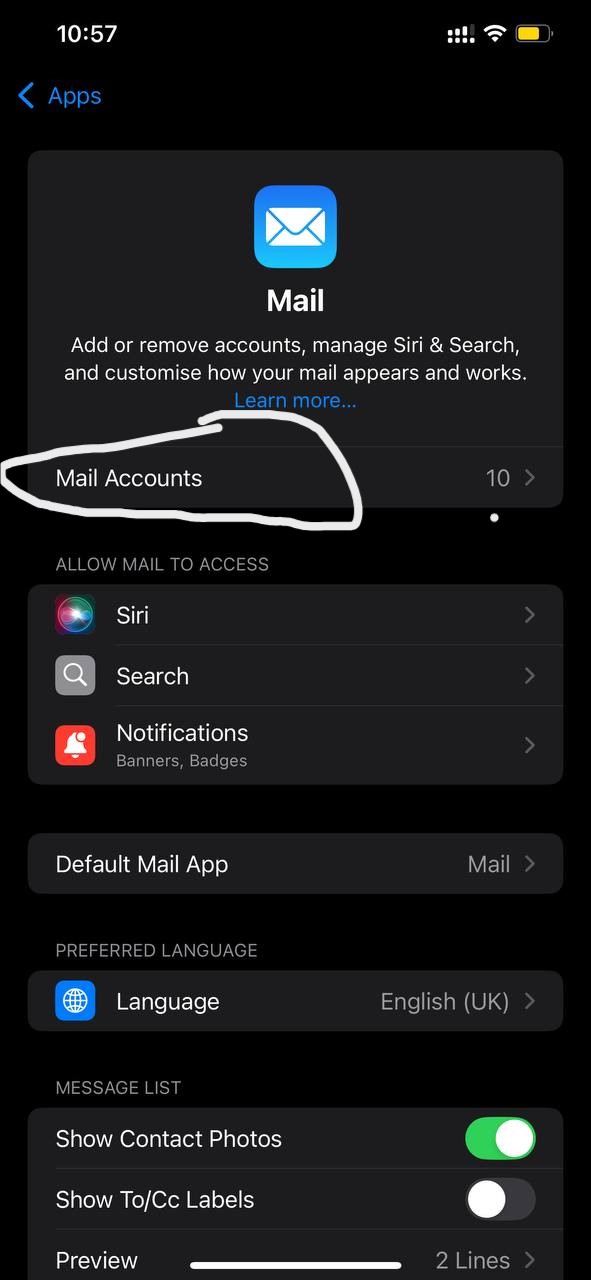
- Search or Scroll down and tap on Mail.
-
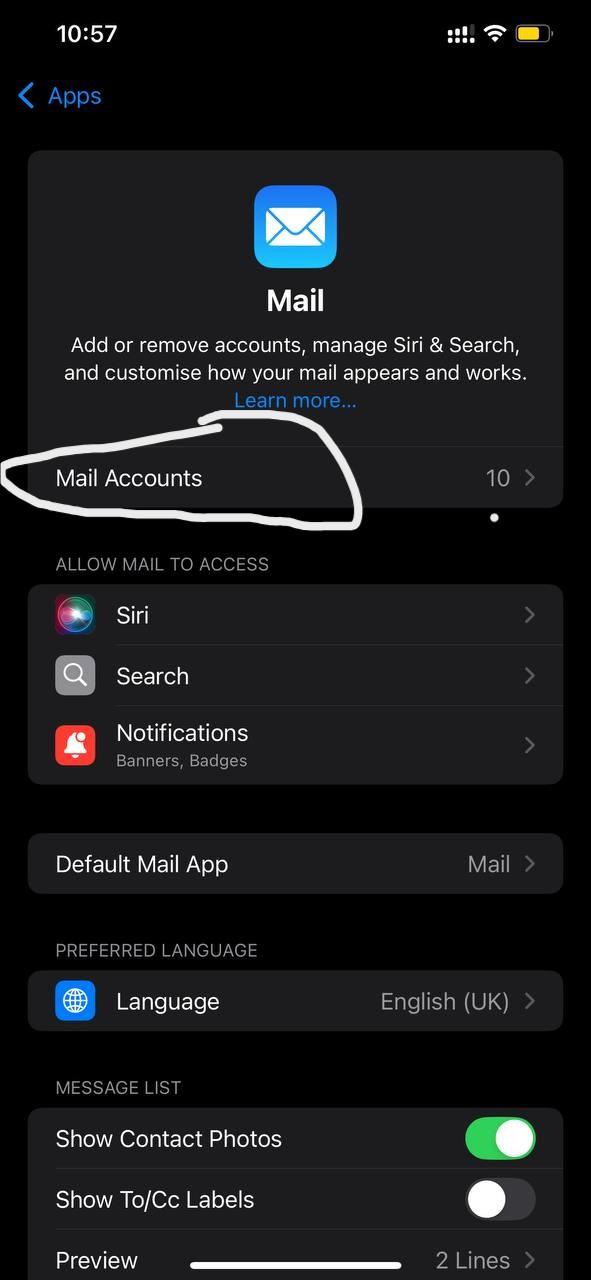
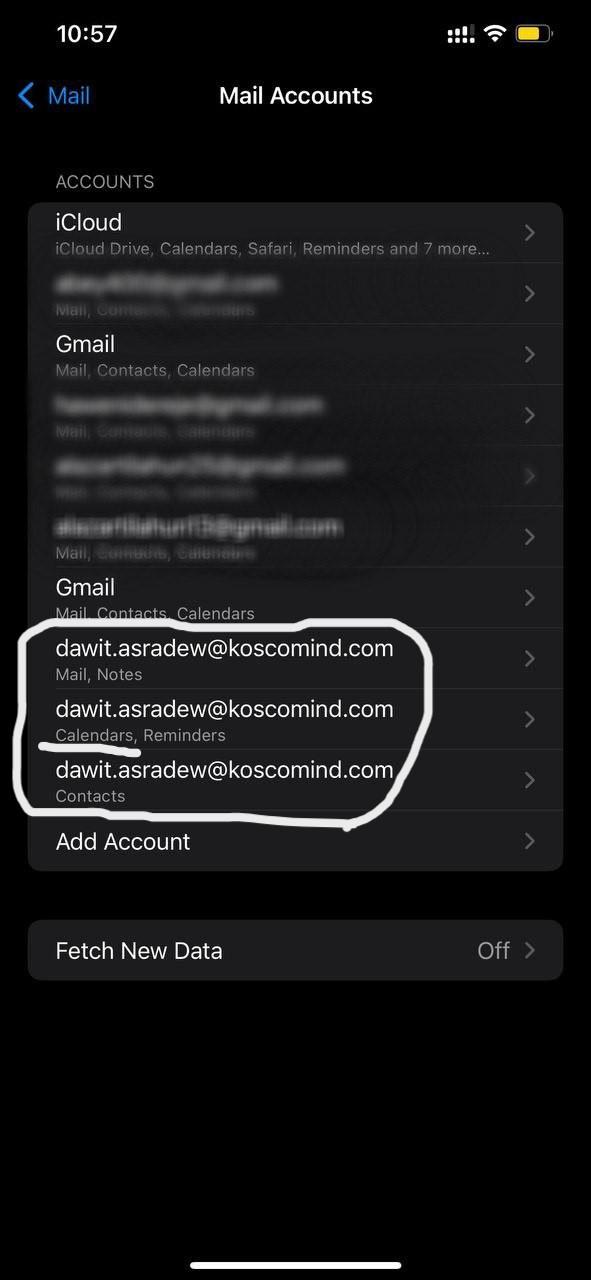
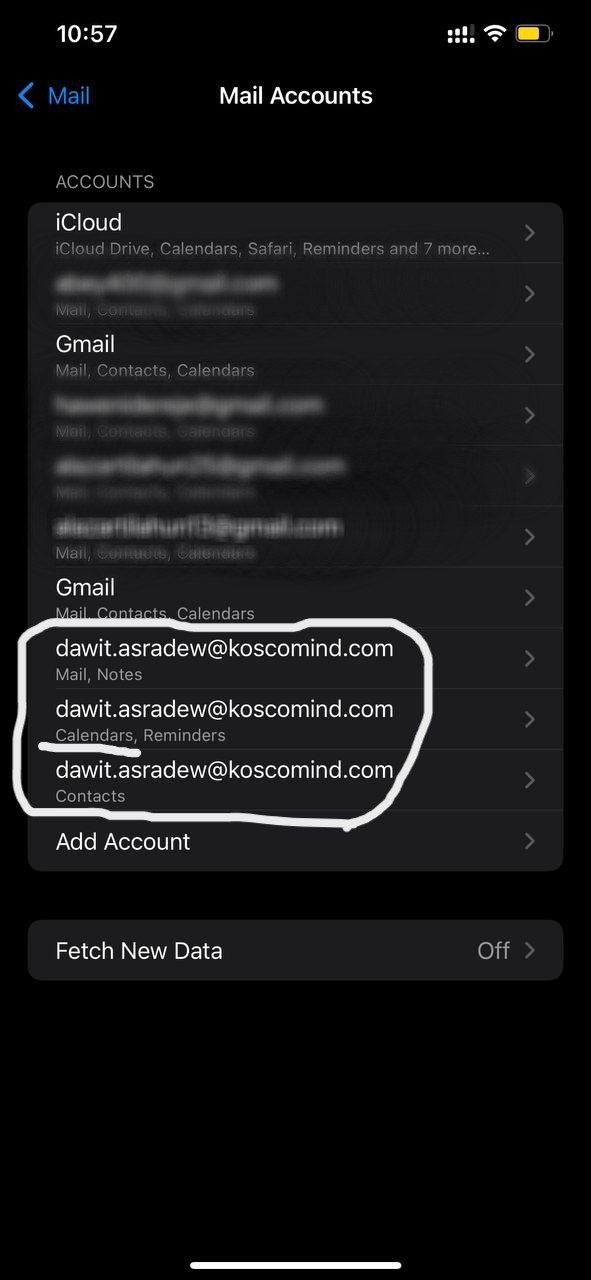
Tap on Mail Accounts.
-
Ensure that your new email account (e.g., "dawit.asradew@koscommind.com") is listed and properly set up.
-
Close the Settings app.
-
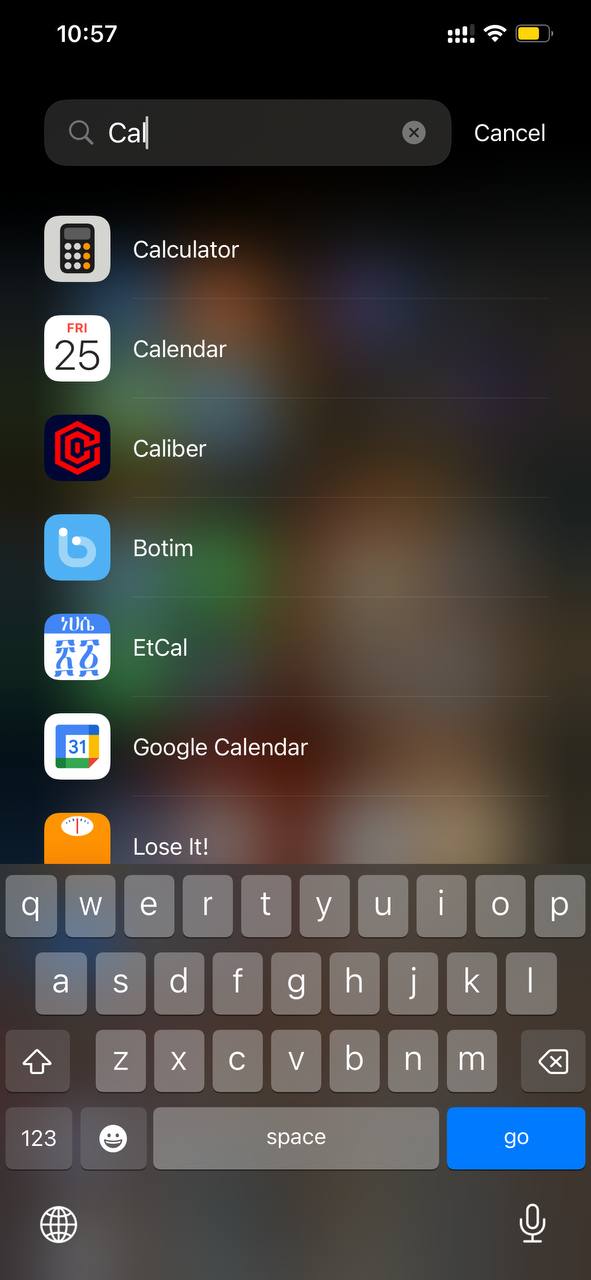
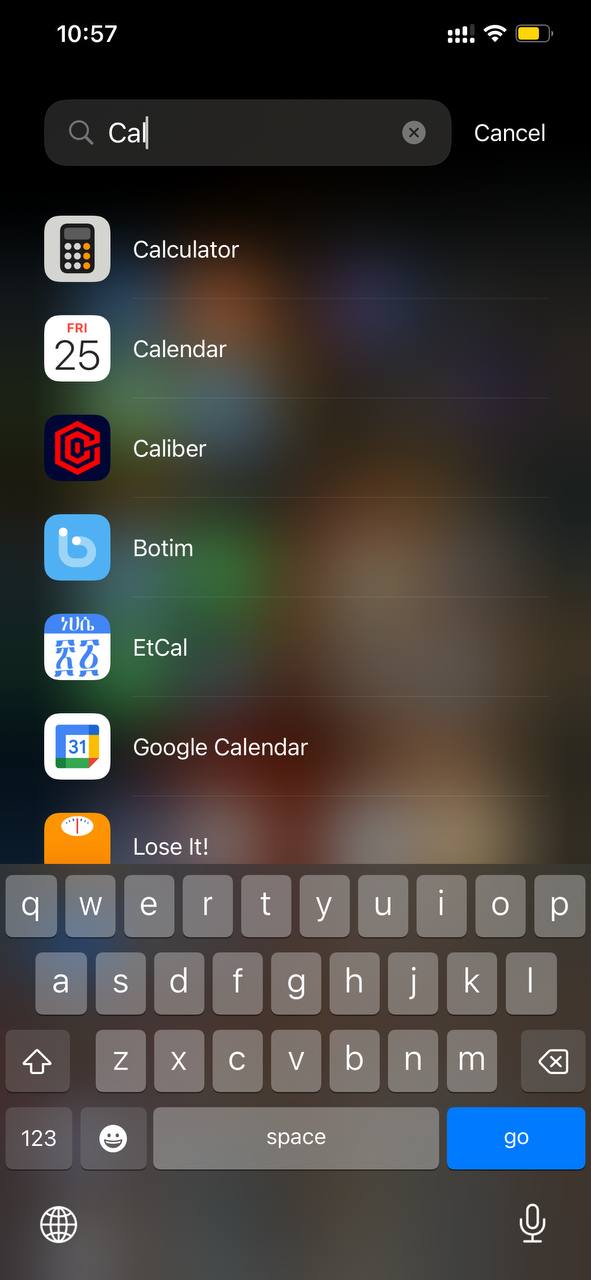
Open the Calendar app on your iPhone.
-
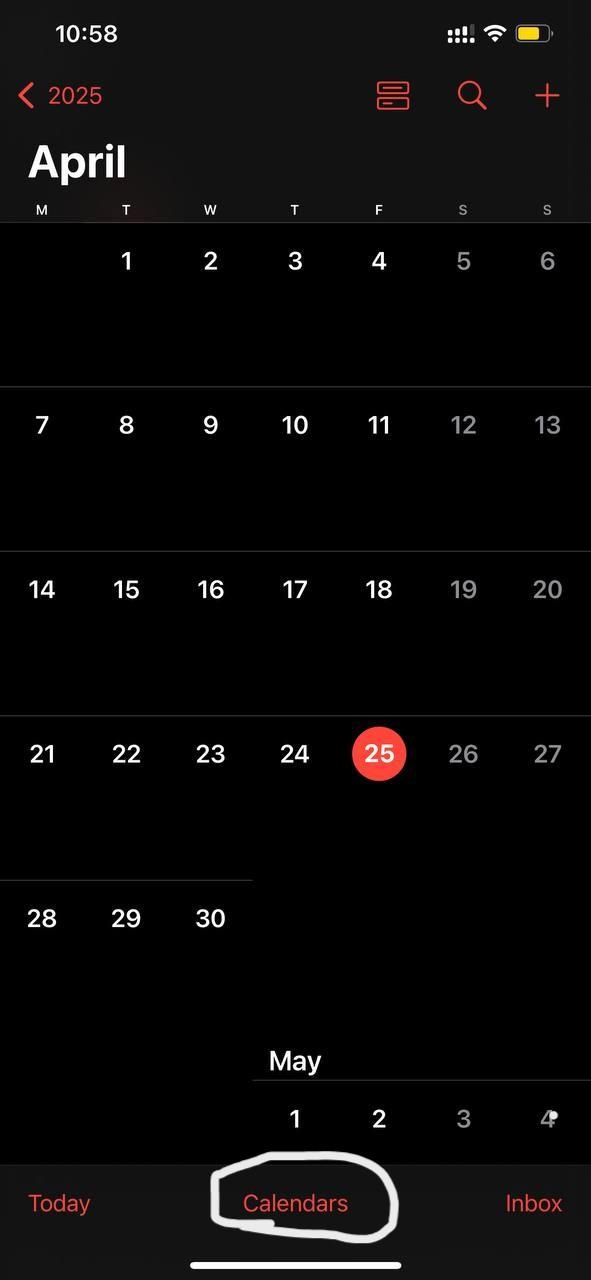
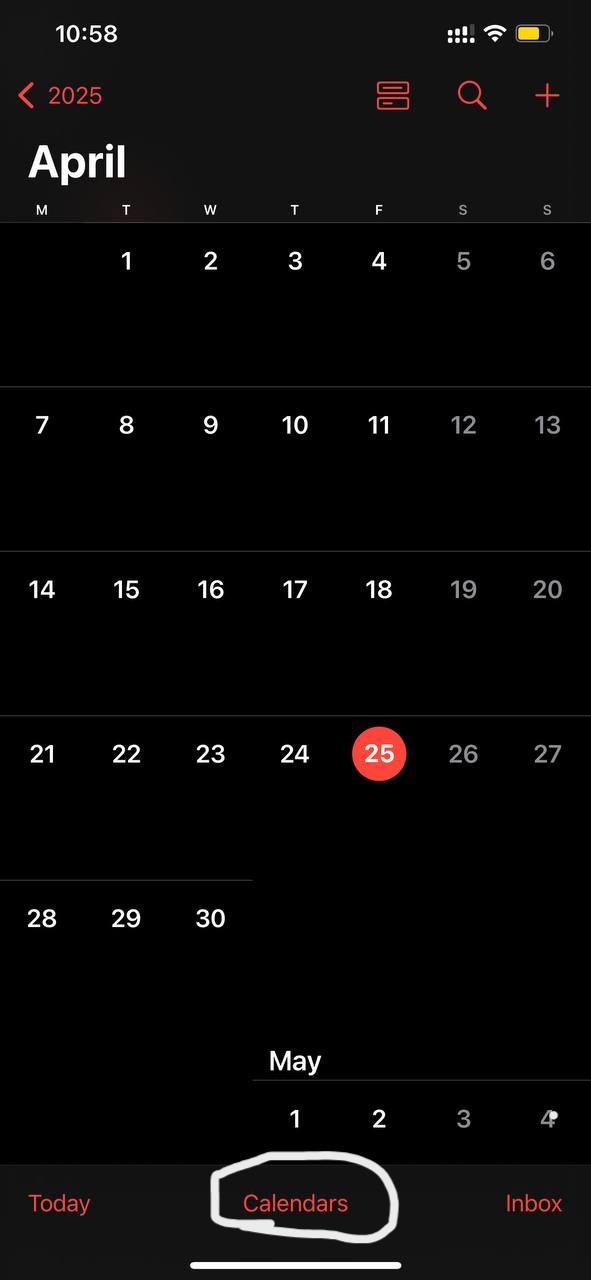
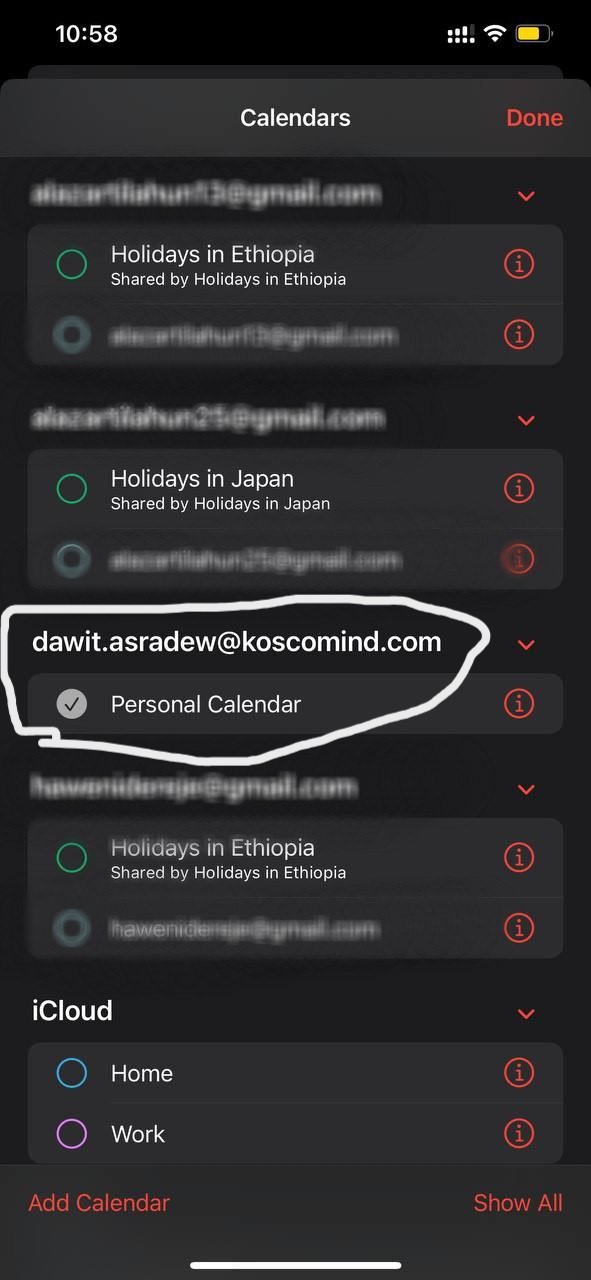
Tap on Calendars at the bottom center of the screen.
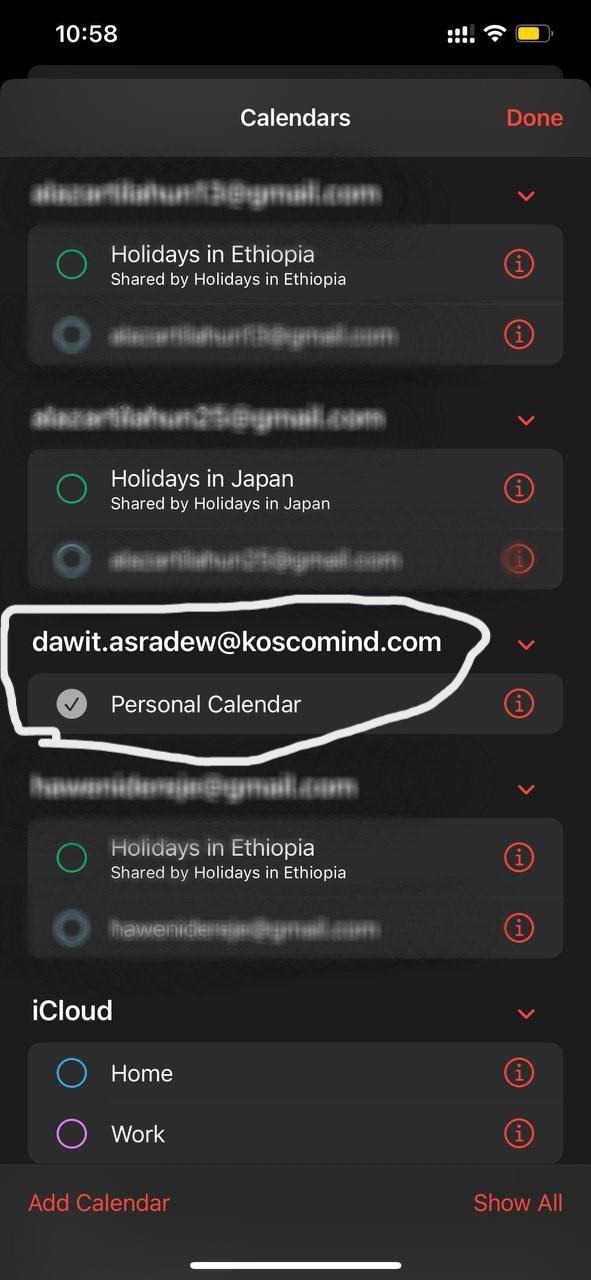
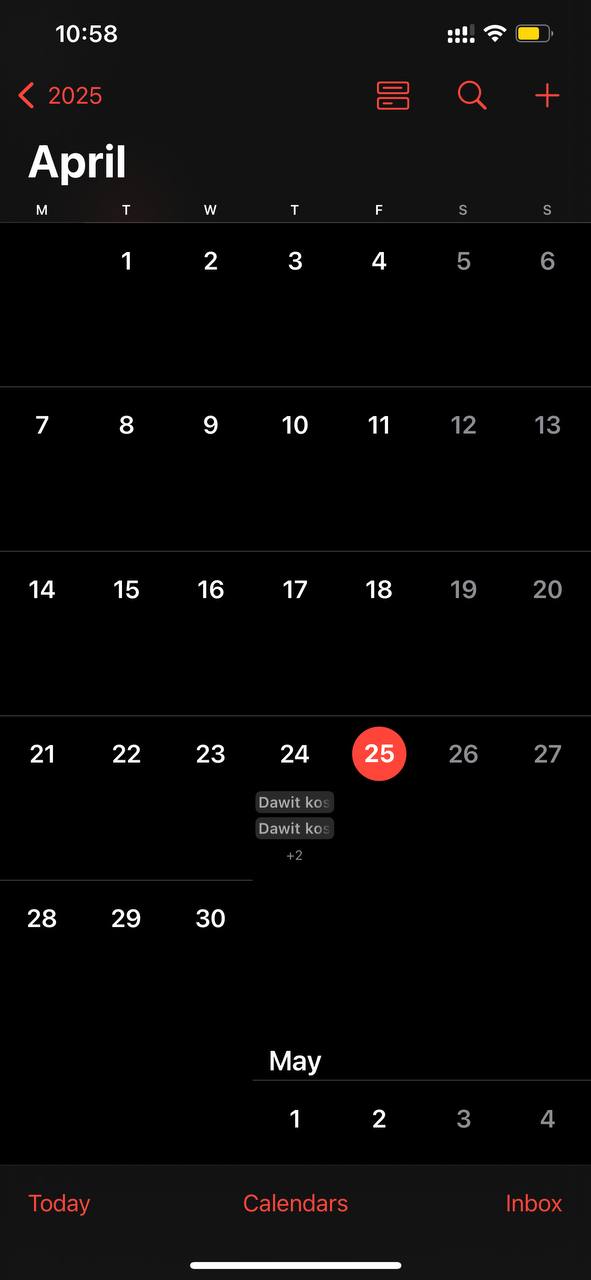

- Ensure that your work email calendar is selected to view calendar appointments easily.

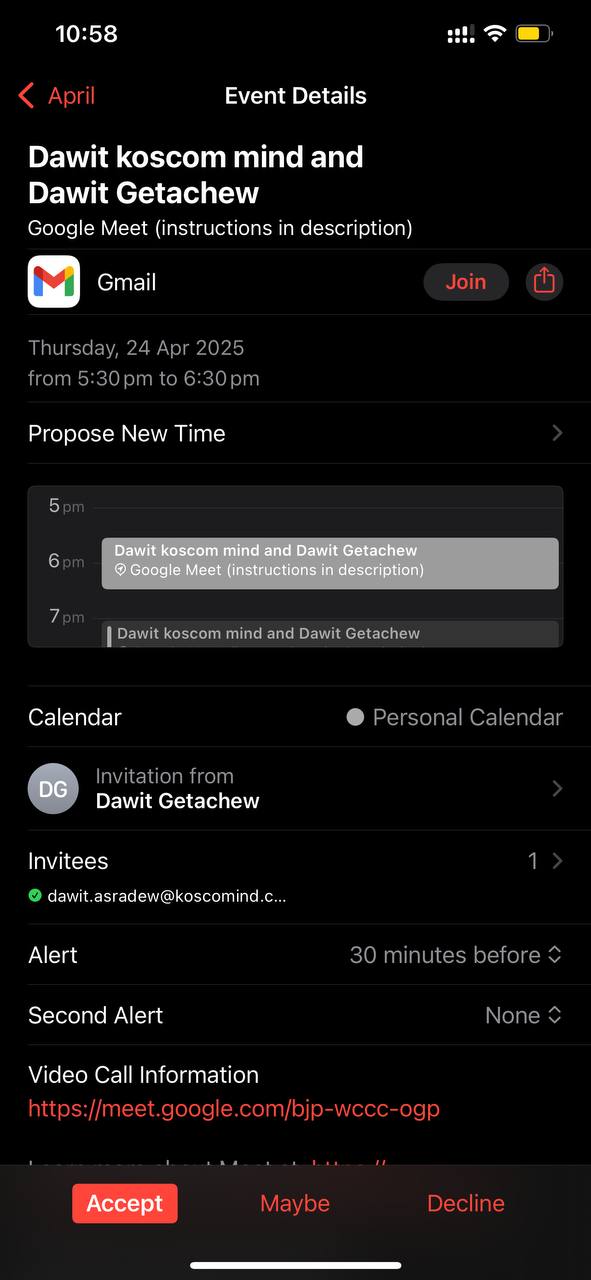
Your MMC email, calendar and contacts should now be successfully configured on your iPhone.
No Comments